7ryMJjyBMgowKMZdQ~~_7.JPG "cee-dee")

- Mark as New
- Bookmark
- Subscribe
- Mute
- Subscribe to RSS Feed
- Highlight
- Report Inappropriate Content
27-03-2017 11:01 PM - edited 27-03-2017 11:02 PM
I'm undecided about what to do now.
I saw that when that check disk thing just flashes up, you should right click and "run as administrator". What alarmed me was that some files could be lost?
Also, after reading about those errors when trying to creat a system back-up, that you should close down your AV and firewall and try then. More alarm......
I might close everything down, unplug my router and try things...... might being the operative word. Failing that, Just copy my important files to a disk after every addition/change and be done with it.... having lost the will to......
It's life Jim, but not as WE know it.
Live long and prosper.
- Mark as New
- Bookmark
- Subscribe
- Mute
- Subscribe to RSS Feed
- Highlight
- Report Inappropriate Content
28-03-2017 3:09 PM
Well, I tried shutting off my AV and the firewall then diconnecting my wired connection to the net and Windows backup failed again.
If it keeps failing like that I'd be wasting my time with Macrium?
It's life Jim, but not as WE know it.
Live long and prosper.
- Mark as New
- Bookmark
- Subscribe
- Mute
- Subscribe to RSS Feed
- Highlight
- Report Inappropriate Content
28-03-2017 4:17 PM
Here's a screenshot of the errow message:-
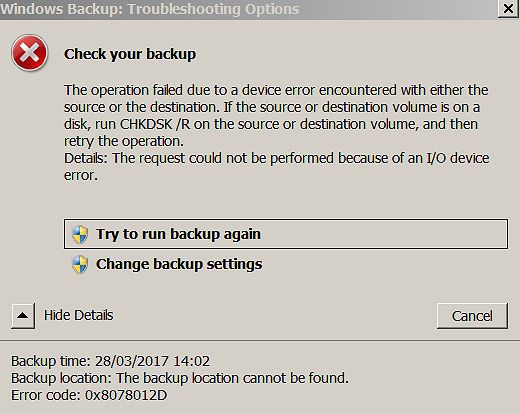
Searching that error was no help, others have the same problem.
It's life Jim, but not as WE know it.
Live long and prosper.


- Mark as New
- Bookmark
- Subscribe
- Mute
- Subscribe to RSS Feed
- Highlight
- Report Inappropriate Content
28-03-2017 9:04 PM
It seems to think a chkdsk might help. Who knows? Might be worth it.
I thought these were quite nice summaries wrt chkdsk:
https://www.howtogeek.com/howto/windows-vista/guide-to-using-check-disk-in-windows-vista/
https://www.w7forums.com/threads/how-to-use-chkdsk-check-disk.448/
https://askleo.com/chkdsk_what_is_it_and_how_do_i_run_it/
https://neosmart.net/wiki/chkdsk/
I'd also be inclined to run sfc /scannow from the command line if you've not had a chance to do so yet.
I promise I've not given up on this project - Real Life can be so inconvenient at times. I'm also having a little bit of a hardware battle.
- Mark as New
- Bookmark
- Subscribe
- Mute
- Subscribe to RSS Feed
- Highlight
- Report Inappropriate Content
28-03-2017 10:01 PM
So frustrating. Looking at your first link, what I get is nothing like that and going to "Start" and entering chkdsk brings up chkdsk.exe and clicking that just results in a dialogue box flashing up and disappearing as I mentioned before.
It's life Jim, but not as WE know it.
Live long and prosper.
- Mark as New
- Bookmark
- Subscribe
- Mute
- Subscribe to RSS Feed
- Highlight
- Report Inappropriate Content
28-03-2017 10:22 PM
I went a different route, found "tools" and scheduled chkdsk. I closed everything down, shut down, waited a half minute then started up again and bingo, it checked the disk but found nothing from what I could see.
It's life Jim, but not as WE know it.
Live long and prosper.
- Mark as New
- Bookmark
- Subscribe
- Mute
- Subscribe to RSS Feed
- Highlight
- Report Inappropriate Content
28-03-2017 10:54 PM
What does the chkdsk say? (Mentioned this last night, I think.
How to find it:
https://superuser.com/questions/214209/where-are-the-results-of-chkdsk-located-in-windows-7
You did run chkdsk /r, I take it - there should be a fair bit of information.
- Mark as New
- Bookmark
- Subscribe
- Mute
- Subscribe to RSS Feed
- Highlight
- Report Inappropriate Content
29-03-2017 11:36 AM
These links keep on showing things that are far, far different than what shows up on this computer.
"Control Panel -> Administrative Tools -> Event Viewer -> Windows Logs -> Application -> Wininit"
When I try that route, it's all different. No sign of "Administative tools" so I went to "Start" and entered "Administative tools", went through some of the links but but when I went to "Applications" (note plural?) there was no sign of "Source" or "Winnit".
It's life Jim, but not as WE know it.
Live long and prosper.
- Mark as New
- Bookmark
- Subscribe
- Mute
- Subscribe to RSS Feed
- Highlight
- Report Inappropriate Content
29-03-2017 6:16 PM
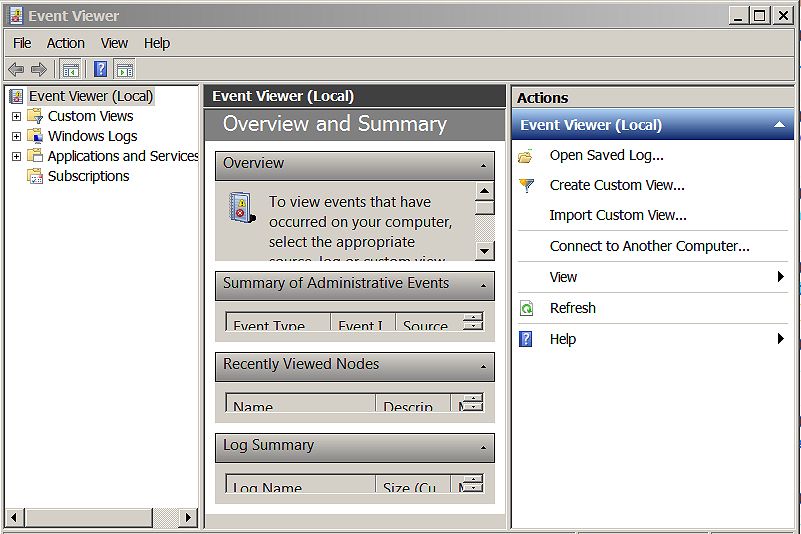
Entering "Events" after clicking "Start" I got this but none of the things I looked at were what flashed up during/end of chkdsk:-
It's life Jim, but not as WE know it.
Live long and prosper.
- Mark as New
- Bookmark
- Subscribe
- Mute
- Subscribe to RSS Feed
- Highlight
- Report Inappropriate Content
29-03-2017 9:34 PM
I coaxed a W7 laptop into life - being a simple soul, I tend to go more the GUI than command line route when I have the choice.
Control Panel > Administrative Tools > Event Viewer found basically what you show in your post.
I then expanded "Windows Logs" and clicked on Application.
This (after a bit of thinking) produced a central window thingy with three columns - Event, Date and Time, Source.
It only contains 6756 entries.
The good news is that you can scroll through by date, and look for a "Wininit" event matching the date and time of your disc check. You'll need to experiment (I don't have one handy) - try double clicking on it and seeing whether it opens the chkdsk report, or right click and see what's available.
You might also try clicking on "Filter current log..." in the action pane on the right:
https://superuser.com/questions/214209/where-are-the-results-of-chkdsk-located-in-windows-7
(cited previously) might help.
I see I can't insert images, so no point trying to take screenshots and transfer them to this machine.
If you want a simple GUI approach to running a disk check:
Press the Windows key/menu button, go Computer > Local Disc C>Properties>Tools>Error checking>tick both boxes in the little box that opens, click Start.
It'll need a restart.
After the restart, retrieve the disk check file as described earlier. Repeat for the other partition (D, I think it was.)
- Mark as New
- Bookmark
- Subscribe
- Mute
- Subscribe to RSS Feed
- Highlight
- Report Inappropriate Content
29-03-2017 10:13 PM
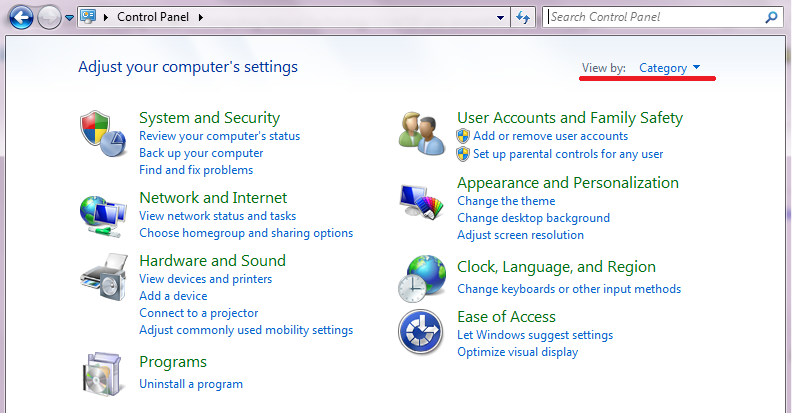
I could fill the place with screenshots. For me, Control Panel doesn't yield "adminstative tools". My control panel:-

It's life Jim, but not as WE know it.
Live long and prosper.


- Mark as New
- Bookmark
- Subscribe
- Mute
- Subscribe to RSS Feed
- Highlight
- Report Inappropriate Content
29-03-2017 11:39 PM
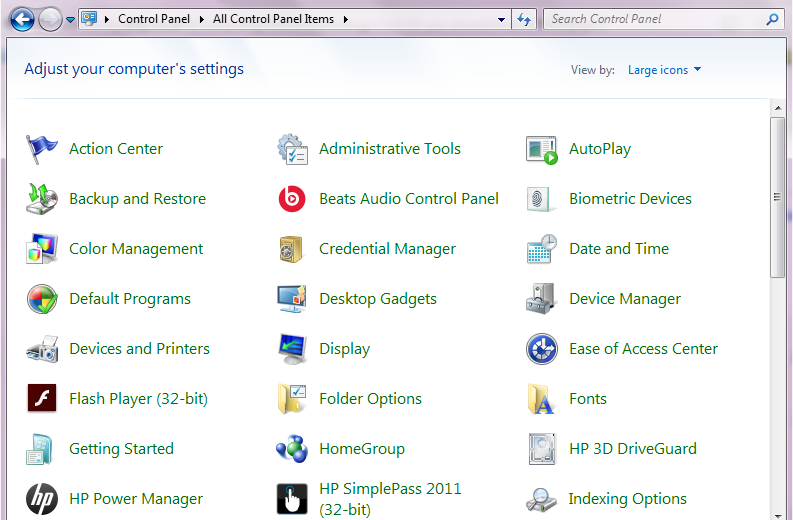
Isn’t there a drop down to alter the view?
- Mark as New
- Bookmark
- Subscribe
- Mute
- Subscribe to RSS Feed
- Highlight
- Report Inappropriate Content
30-03-2017 9:39 AM
There are different views on Win7 control panel and I recollect home edition whatever limiting what you can easily see. The link might help.
http://www.dummies.com/computers/operating-systems/windows-7/windows-7-control-panel-features/
- Mark as New
- Bookmark
- Subscribe
- Mute
- Subscribe to RSS Feed
- Highlight
- Report Inappropriate Content
30-03-2017 10:59 AM
Clicking "Small icons" or "Large icons" brings up a whole page full of stuff and Administative tools is amongst them. I guess it's the different versions of Win 7 that show up differently?
It's life Jim, but not as WE know it.
Live long and prosper.
- Mark as New
- Bookmark
- Subscribe
- Mute
- Subscribe to RSS Feed
- Highlight
- Report Inappropriate Content
30-03-2017 11:10 AM
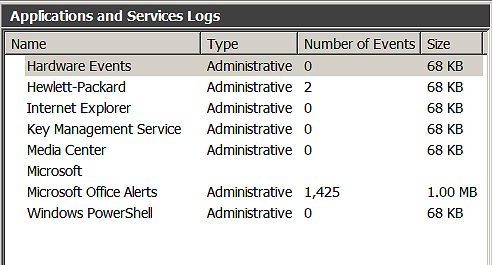
Going back to #47 and mention of "winnit", There's no "Applications", but "applications & services", here's another screenshot:-
It's life Jim, but not as WE know it.
Live long and prosper.
- Mark as New
- Bookmark
- Subscribe
- Mute
- Subscribe to RSS Feed
- Highlight
- Report Inappropriate Content
30-03-2017 9:44 PM
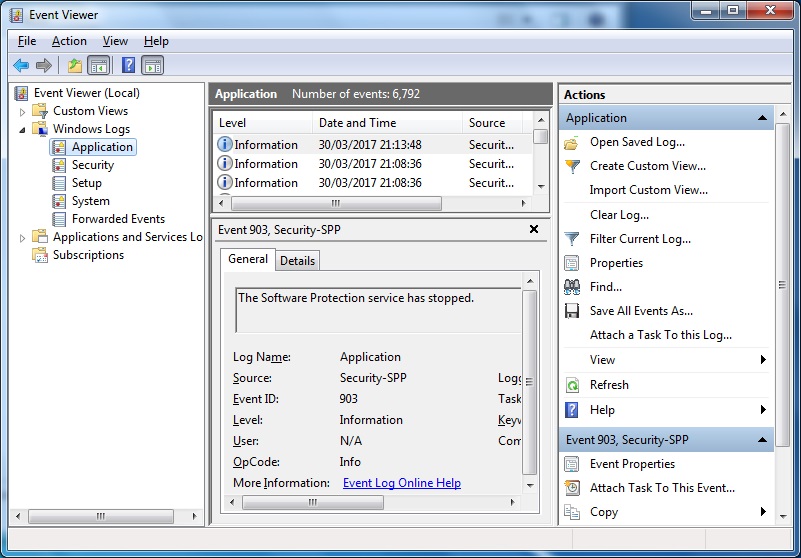
You've missed the "Windows Logs" step out (or your computer, for some bizarre reason, doesn't show it.)
I've just double checked:
Control panel > Administrative Tools > Event Viewer > Windows Logs > Application
- Mark as New
- Bookmark
- Subscribe
- Mute
- Subscribe to RSS Feed
- Highlight
- Report Inappropriate Content
30-03-2017 9:45 PM
Why this blessed site sometimes lets me post screenshots and more often doesn't, goodness knows.
- Mark as New
- Bookmark
- Subscribe
- Mute
- Subscribe to RSS Feed
- Highlight
- Report Inappropriate Content
31-03-2017 9:35 AM
My version of Win 7 is "Home Premium". Dunno how much difference that makes?


It's life Jim, but not as WE know it.
Live long and prosper.
- Mark as New
- Bookmark
- Subscribe
- Mute
- Subscribe to RSS Feed
- Highlight
- Report Inappropriate Content
31-03-2017 1:57 PM
Getting there!
Double click on Application (or expand Windows Logs with the + thing and then click on Application from the list that appears.)
That should get you to what's shown in my screenshot.
The scrollable bit is the little centre window. Try to find a "wininit" for the right date and time. It might take a while now, as the event log records a lot of stuff. (It's the bit that "support" scammers direct their telephonic victims to. As it's normal for it to show all sorts of errors and warnings, it is useful for putting the wind up the ill-informed, and persuading them that they need expensive assistance.)
- Mark as New
- Bookmark
- Subscribe
- Mute
- Subscribe to RSS Feed
- Highlight
- Report Inappropriate Content
31-03-2017 3:39 PM
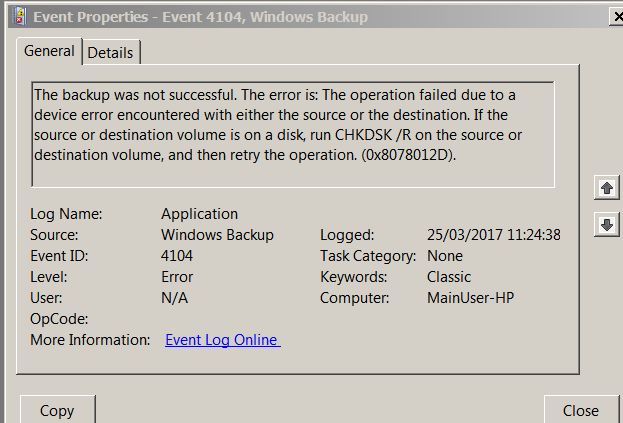
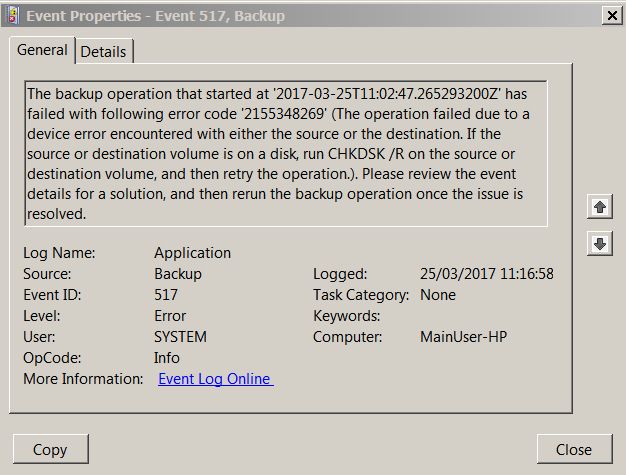
Here's a couple to be going on with, no sign of anything called "winnit". If I go to "Start" and type in CHKDSK/R I get "No items matched your search".
It's life Jim, but not as WE know it.
Live long and prosper.
